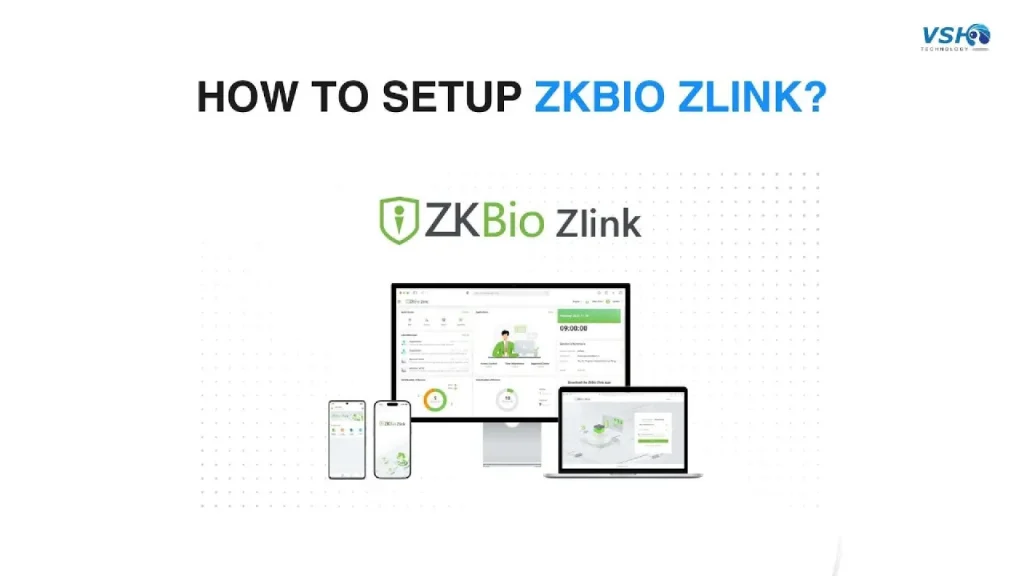
Biometric time attendance and access control systems have become essential for modern businesses. Today, VSH Technology as the authorized distributor of ZKTeco security system equipment has come with a tutorial video. This ZKTeco ZKBio ZLink Setup guide will cover every step including from installation to generating your first attendance report.
What Is ZKBio ZLink 2026?
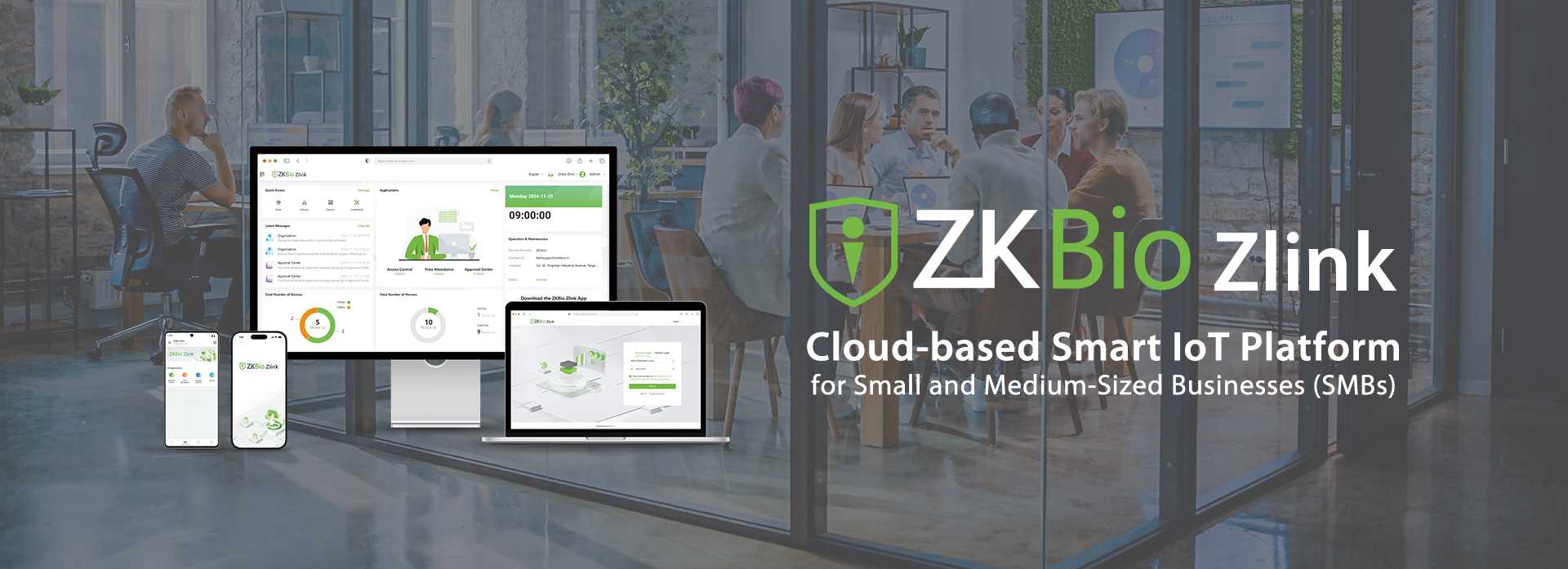
ZKBio ZLink is a lightweight software application designed to manage ZKTeco biometric devices. It allows you to:
- Enroll users (fingerprint, face, or PIN)
- Download attendance logs
- Configure shift schedules
- Generate reports for payroll or compliance
The 2026 version focuses on faster USB/Ethernet communication and a cleaner dashboard.
Step-by-Step Setup Instructions
Step 1: Download and Install ZKBio ZLink 2026
- Go to the official ZKTeco website → Support → Downloads.
- Search for ZKBio ZLink 2026.
- Download the installer (approx. 200–300 MB).
- Run the
.exefile as administrator. - Follow the installation wizard:
- Accept the license agreement.
- Choose installation folder (default is fine).
- Click Install.
- Once finished, launch the software from your desktop shortcut.
Tip: Disable Windows firewall temporarily during installation to avoid connection issues.
Step 2: Create Your Company Profile
When you first open ZKBio ZLink 2026, it will ask for basic company information:
- Company Name (e.g., ABC Corp)
- Timezone (important for accurate attendance timestamps)
- Admin email & phone (for recovery)
Fill these in and click Save. This creates a local database for your attendance records.
Step 3: Connect Your ZKTeco Device
You have three connection options. Choose the one that matches your setup.
First Option – LAN (Ethernet) – Most Common
- Connect your device to the same router/switch as your PC.
- On the device screen, go to Menu → Communication → Network.
- Note the IP address (e.g.,
192.168.1.120). - In ZKBio ZLink, go to Device → Add Device.
- Select TCP/IP, enter the IP address, and leave port as
4370. - Click Test Connection. If successful, click Add.
Second Option – USB Direct
- Connect the device to your PC using a USB-B (printer-style) cable.
- In ZKBio ZLink, go to Device → Add Device → USB.
- The software should auto-detect the device. Click Connect.
Third Option – Cloud/Remote (if supported)
- Some newer devices support cloud sync via ZKCloud. You’ll need to enter a device serial number and cloud key.
Common issue: If the device is not detected, check that your PC and device are on the same subnet (first three numbers of IP match, e.g., both
192.168.1.x).
Step 4: Enroll Users (Fingerprint / Face / PIN)
Once the device is added, it’s time to add employees.
Method 1 – Enroll directly on the device:
- On the device itself, go to User Management → New User.
- Choose verification method: fingerprint, face, PIN, or combination.
- Follow the on-screen prompts (usually 3 scans of the same finger).
- Assign an ID number and (optional) name.
- Save. The user will automatically sync to ZKBio ZLink software.
Method 2 – Enroll via software (for larger batches):
- In ZKBio ZLink, go to Person → Add Person.
- Enter ID, name, department, etc.
- If you have a USB fingerprint reader attached to your PC, you can enroll fingerprints directly. Otherwise, click Sync to Device and enroll later on the device.
Tip: For 50+ employees, use the CSV import feature. Prepare an Excel file with ID, name, and department, then import it.
Step 5: Configure Attendance Rules
Now define when employees should clock in/out.
- Go to Attendance → Shift Management.
- Create a new shift (e.g., “Office Hours 9–6”):
- Check-in time: 09:00
- Check-out time: 18:00
- Late allowance: 15 minutes
- Early leave allowance: 10 minutes
- Go to Holiday Settings and add public holidays (employees won’t be marked absent).
- Go to Overtime Rules (optional):
- Define after how many hours overtime starts (e.g., after 8 hours of work).
- Set overtime rate multiplier (1.5x, 2x).
- Assign shifts to employees:
- Attendance → Assign Shift → Select employees → Choose shift → Apply.
Step 6: Download Attendance Logs
The device stores transactions internally. To see them in the software:
- Auto-download: Go to Device → Auto Download Settings. Set it to download every 5 or 10 minutes.
- Manual download: Click Device → Download Logs from the device list. This pulls all new records.
After downloading, go to Attendance → Raw Logs to view all check-ins/outs.
Step 7: Generate Reports
This is what managers care about most.
- Go to Reports → Attendance Report.
- Select date range (e.g., March 1–15, 2026).
- Choose report type:
- Daily Summary – who came late/left early
- Monthly Summary – total worked hours per employee
- Detailed Log – every single transaction
- Click Generate.
- Export as Excel, PDF, or CSV for payroll processing.
Pros Of ZKBio ZLink In 2026
In general, the ZKBio Zlink platform is a cloud-based SaaS (Software as a Service) solution designed to move traditional on-premise security and workforce management to the cloud.
1. Zero Infrastructure Costs
The platform eliminates the need for expensive physical servers, dedicated IT departments, or complex local network setups. It is hosted on secure Amazon Web Services (AWS) infrastructure, which handles all data storage, backups, and cyber security protocols.
2. Unified “All-in-One” Management
Instead of using separate programs for different tasks, ZKBio Zlink integrates multiple applications into one dashboard:
- Time & Attendance: Real-time tracking of employee hours and shifts
- Access Control: Remotely manage permissions and unlock doors from anywhere via the app
- Visitor Management: Simplify guest registration and pre-approvals
- Video Intercom: Latest versions support video intercom for managing entries remotely
3. High Mobility & Remote Access
Because it is cloud-native, the system is accessible via a web portal or the ZKBio Zlink Mobile App.
- Mobile Punching: Employees can clock in/out using their smartphones with GPS and WiFi verification to ensure they are at the correct location.
- Approval Center: Managers can receive instant notifications and approve leave or overtime requests on the go.
4. Effortless Multi-Site Scalability
It is designed for businesses that operate across multiple geographical locations. You can centrally manage various “zones” or sites (like multiple branches or construction depots) without adding technical complexity to each individual location
End Note
Setting up ZKTeco ZKBio ZLink in 2026 is straightforward if you follow the steps in order:
- Install the software
- Add your company
- Connect your device
- Enroll users
- Set shifts
- Download logs
- Run reports
Once configured, the system runs automatically saving you hours of manual attendance tracking each month.
Looking For ZKTeco ZKBio ZLink Software?
If your are looking for ZKTeco ZKBio ZLink Software in Malaysia, VSH Technology is the right choice. Contact us today! We distribute security systems and solutions for your peace of mind.